
A robots.txt file controls which paths crawlers may fetch, not which pages appear in search results. For a storage site, the best immediate move is to disallow admin, login and payment paths while keeping facility pages, unit-size pages and your sitemap crawlable. Test every change in Google Search Console and Bing's robots.txt tester before you publish it.
TL;DR:
- A disallowed page can still appear in search results through external links, and crawlers cannot read its noindex tag while access remains blocked.
- Keep facility, unit size, photo, and booking paths crawlable; never block CSS, JavaScript, or image folders, which crawlers need to render pages.
- Place the file at the root of each exact host; subdomains need separate files, and the Sitemap directive should contain the full URL.
- Test key pages in Google Search Console and Bing Webmaster Tools before publishing; Google’s cache usually lasts 24 hours and may persist longer.
- A server error on robots.txt can cause crawlers to assume the whole site is disallowed, so monitor the file’s uptime and avoid redirect chains.
Table of Contents
- What robots.txt is and what it cannot do
- Where the file lives and the syntax it uses
- Rules and examples built for storage sites
- How to test changes and avoid common mistakes
- Server errors, caching and crawl budget
- Our view: robots.txt is hygiene, not strategy
- We help storage operators get found by search and AI
- FAQ
- Sources
What robots.txt is and what it cannot do
Robots.txt is a plain text file that tells crawlers which parts of your site to fetch or skip. It follows the Robots Exclusion Protocol, which the IETF published as RFC 9309, and it lives at one fixed address on your domain: /robots.txt.
The limits matter more than the rules:
- It blocks crawling, not indexing. A page you disallow can still show up in results if other sites link to it.
- It is not security. Listing a path in the file advertises that path to anyone who opens it, so sensitive pages need real authentication or a noindex directive, as this robots.txt guide points out.
- Compliance is voluntary. Some crawlers may choose not to follow the rules.
- A crawler that cannot read a page cannot see its noindex tag. Never combine a disallow rule with a noindex tag on the same page and expect the tag to work.
Google's own documentation says to create a file named robots.txt, place it at the site root, save it as UTF-8 plain text, and test it in Search Console, as described in Google's guide to creating a robots.txt file.
For storage operators, this means robots.txt is a traffic-direction tool. It keeps crawlers away from low-value areas so they spend time on the pages that rent units.
Where the file lives and the syntax it uses
The file must be named robots.txt and sit at the root of the host, such as yourfacility.com/robots.txt. A file in a subfolder is ignored. It also applies only to the exact protocol, host and port where it lives, so a separate subdomain for online rentals needs its own file.
The basic building blocks are simple:
- User-agent names the crawler a group of rules applies to. An asterisk means all crawlers.
- Disallow lists a path crawlers should not fetch.
- Allow carves out an exception inside a disallowed path.
- Sitemap gives the full URL of your XML sitemap.
| Directive | Example | What it does |
|---|---|---|
| User-agent | User-agent: * | Applies the group to every crawler |
| Disallow | Disallow: /admin/ | Blocks that folder |
| Allow | Allow: /admin/help/ | Re-opens one path inside a blocked folder |
| Sitemap | Sitemap: https://yourfacility.com/sitemap.xml | Points crawlers to your sitemap |
Paths must start with a slash and are case-sensitive, so /Admin/ and /admin/ are different rules. Save the file as UTF-8 plain text, and never let your server answer that URL with an HTML page. Google may ignore lines it cannot parse, and the file should stay within Google's size limit.
Rules and examples built for storage sites
Most storage sites have two kinds of pages: public ones that earn bookings (facility descriptions, unit sizes, rates, blog articles) and private ones that never should (admin panels, tenant accounts, payment steps). Blocking the second group lets crawlers spend their time on the first, as Search Engine Land's coverage of Bing's tester recommends for admin and payment directories.
Work through your file in this order:
- List every private path your platform creates, such as
/admin/,/login/,/account/and/payments/. - Disallow each one under
User-agent: *. - Confirm that facility pages, unit-size pages, photos and your booking entry page are not caught by any rule.
- Add a
Sitemap:line with the full URL. - Test, publish, then recheck the live file.
A standard single-domain site can use this:
User-agent: *
Disallow: /admin/
Disallow: /login/
Disallow: /account/
Disallow: /payments/

Sitemap: https://yourfacility.com/sitemap.xml
On WordPress, your host or an SEO plugin may generate the file for you, so check the live URL before uploading your own copy. A headless or JavaScript-heavy site needs more than a robots file: crawlers need server-rendered or prerendered HTML to read unit details, which we cover in our technical SEO guide for self storage. Keep your sitemap healthy too, and see how to manage your sitemap size.
Pro Tip: Never block your CSS, JavaScript or unit photo folders. Crawlers that cannot load them may misread your pages, and you lose image traffic for unit searches.

How to test changes and avoid common mistakes
Treat every robots.txt edit like a pricing change: verify before it goes live. Use the testing tools in Google Search Console and the Bing Webmaster Tools robots.txt tester, because a small syntax error can block an entire site. Paste in your key URLs, such as a facility page and a unit-size page, and confirm they come back as allowed.
The mistakes we see most often:
- A missing leading slash, which makes a rule match nothing or the wrong thing.
- A single
Disallow: /left over from a staging site, which blocks everything. - The wrong file encoding or an HTML error page served at
/robots.txt. - A CMS or plugin that regenerates the file and overwrites your upload.
- Blocking a path that your sitemap still lists.
Keep a copy of the last working version so you can roll back quickly. After any change, watch coverage and crawl stats in Search Console for a couple of weeks. If pages drop out, run through our indexing checklist for storage sites before blaming Google. A rollout checklist like this website audit checklist is a handy template for the process.
Pro Tip: Test on a staging copy first, then compare the live file against your saved version right after deployment. Deployment errors can happen during the hand-off.
Server errors, caching and crawl budget
Crawlers may consult robots.txt when deciding which pages to fetch, so its availability can affect crawling. Under RFC 9309, if the file is unreachable because of server errors, crawlers must assume a complete disallow. Search Engine World's explainer on the standard notes that a long-running failure eventually makes crawlers treat the site as having no robots.txt at all.
Google also caches the file. Its documentation says the cache generally lasts up to 24 hours but can run longer when the file is unreachable, so an edit may not take effect immediately.
Practitioners report that a 5xx response on robots.txt can make Google pause crawling for hours to days, as described in this server error analysis. For a storage site, that means new rates and unit availability get seen late.
Protect yourself with a few habits:
- Set up an uptime alert that checks
/robots.txtspecifically. - Keep the file on a fast, stable path, not behind a redirect chain.
- Avoid deploying server changes during peak crawl hours.
- Ask your host how failover works if the main server goes down.
Our view: robots.txt is hygiene, not strategy
A robots.txt problem can sit next to a bigger issue, such as thin facility pages or a broken sitemap. We treat the file as technical hygiene and check it alongside structured data and AI-ready content. Our quick checklist: the file exists and loads, official testers pass it, the sitemap is listed, and every blocked path has been reviewed by a human. If you want a second pair of eyes, we run a free AI visibility audit.
— Mike
We help storage operators get found by search and AI
Robots.txt is one small piece of being discoverable, and we cover the rest. Our work for self-storage operators includes:
- Technical SEO audits that catch crawling and indexing problems
- AI visibility audits across Google, ChatGPT, Claude and Perplexity
- Custom websites built for storage facilities
- Flat-rate service with no contracts
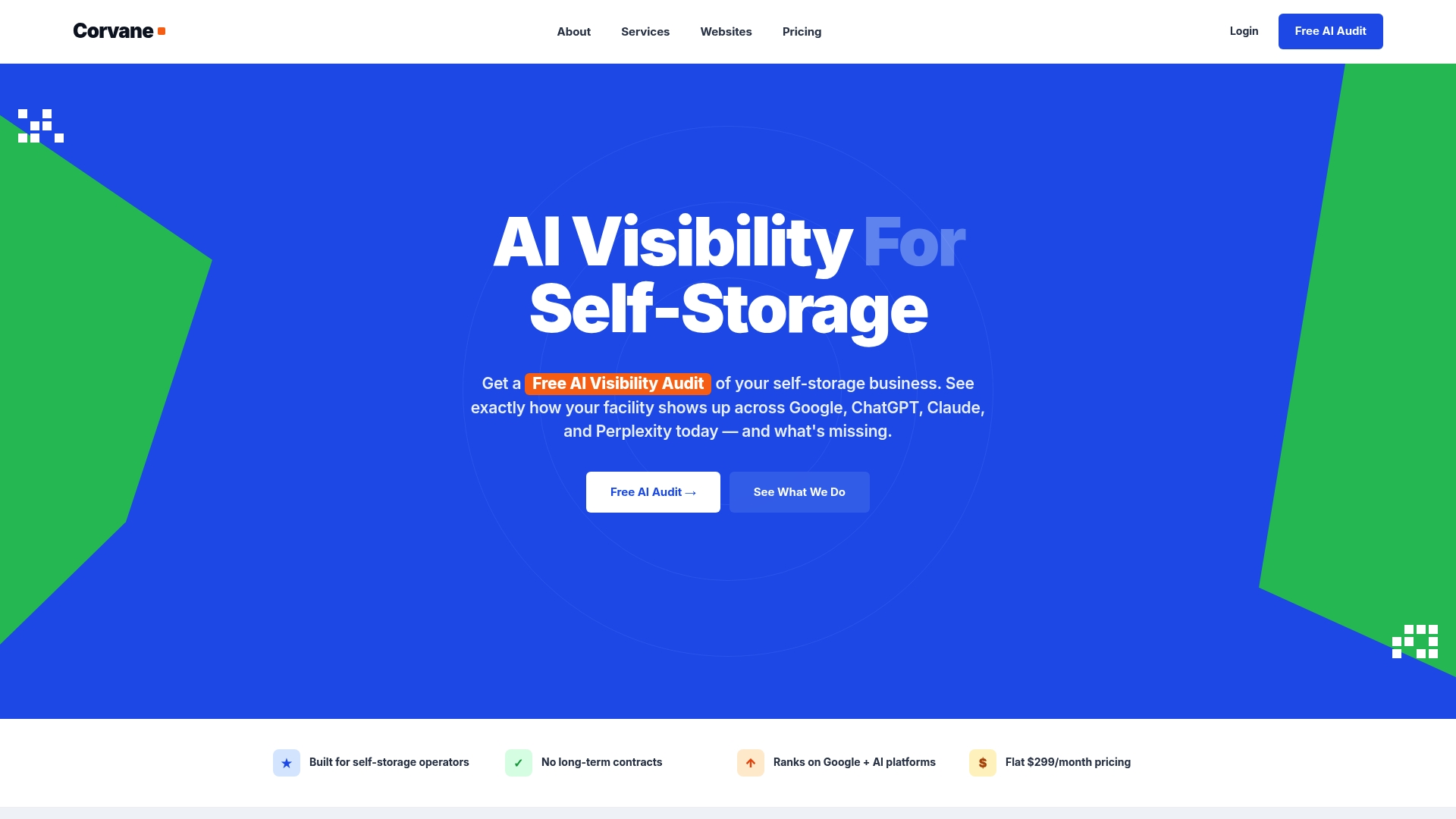
Our full system is $299 per month with a one-time $50 onboarding fee. Start with the free AI visibility audit at Corvanesystems and we will show you what crawlers and AI tools see on your site today.
FAQ
Where is the robots.txt file stored?
It sits at the root of your domain, at /robots.txt. A copy in any subfolder is ignored, and each subdomain needs its own file.
Can robots.txt block indexing?
Not reliably. It stops crawling, but a blocked page can still be indexed if other sites link to it. Use a noindex tag on a crawlable page or require a login for private content.
Does robots.txt stop AI crawlers?
You can add rules for AI crawler user agents, but robots.txt cannot guarantee they will be followed. It is a voluntary standard, though, so it will not stop a bot that chooses to ignore it.
What does disallowing in robots.txt mean?
A Disallow line asks crawlers not to fetch that path. For a storage site, that usually means admin, login and payment folders, never your facility or unit pages.
Sources
- RFC 9309: Robots Exclusion Protocol
- Create and Submit a robots.txt File | Google Crawling Infrastructure | Crawling infrastructure | Google for Developers
- Searchengineland
- Searchengineworld