
For most Google Business Profile (GBP) image types, upload JPG or PNG files between 10 KB and 5 MB, at a recommended 720×720 px (minimum 250×250 px). Cover photos perform best at 1024×576 px (16:9). GBP media lives entirely outside your personal Google Photos storage quota — it's governed by Google's content quality policies, not a gigabyte limit.
Quick specs at a glance:
Do these five things now:
- Resize any photo below 250×250 px before uploading — Google will reject it
- Convert any non-JPG/PNG files (WebP, HEIC, BMP) before upload
- Keep every file under 5 MB; aim for 200–500 KB for fast loading
- Set your cover photo to 1024×576 px so it doesn't crop awkwardly on mobile
- Confirm your profile is verified — unverified listings often suppress photos from appearing publicly
Key Takeaways
The single most important thing you can do for your GBP listing is upload correctly sized, policy-compliant photos consistently — specs and cadence together outperform any one-time optimization.
| Point | Details |
|---|---|
| Use JPG or PNG, 10 KB–5 MB | These are the only accepted formats; files outside this size range will be rejected. |
| Cover photo at 1024×576 px | Set cover images to 16:9 at this resolution; Google may still substitute a higher-engagement image. |
| GBP storage is policy-based, not quota-based | GBP media does not count against your Google Photos storage; compliance with content policy is what governs removal. |
| Add new photos regularly to keep your listing active and fresh. | Fresh uploads signal an active listing and support local ranking prominence over time. |
| Corvanesystems audits and manages GBP photos | Flat-rate local SEO service for storage operators includes photo audits, upload support, and listing health monitoring. |
Table of Contents
- What are the right photo dimensions for each GBP image type?
- Which file formats and compression settings work best for GBP?
- How do you upload, replace, and remove GBP photos?
- Where do GBP photos appear, and why does that matter for local visibility?
- What does Google's photo policy actually prohibit?
- What does a strong photo strategy look like for storage operators?
- How do you fix photos that won't show, crop wrong, or get rejected?
- Why ongoing photo care wins for storage facilities
- Corvanesystems helps storage operators get their GBP listings right
- Sources
What are the right photo dimensions for each GBP image type?
Google's published image requirements set the floor, but practical experience sets the ceiling. Here's the full breakdown, with notes on where each image type actually shows up and how Google handles cropping.
Semrush's GBP photo size guide confirms the 1024×576 px cover target and the 1200×900 px recommendation for product and post images. The 4:3 ratio holds up well across desktop Knowledge Panel and mobile Maps views without aggressive cropping.
A few things worth knowing about how Google handles these placements:
- The Knowledge Panel main image is often pulled from your cover photo, but Google's algorithm can substitute any high-quality photo from your library
- Logo images are cropped to a circle on Google Maps — keep logos centered with clear padding around the edges
- Post images may display as square thumbnails in mobile search, so center your subject and avoid text near the edges
Google's dynamic cropping on mobile will cut the sides first.*
For businesses managing 10 or more locations, Google supports bulk photo uploads via a spreadsheet template. Photos still require a verified profile to display publicly — unverified listings will hold images in a pending state.
Which file formats and compression settings work best for GBP?
JPG handles photographs well. PNG is the right call for logos or any image with transparency. Those are the only two formats Google accepts for GBP uploads — WebP, HEIC, TIFF, and BMP all need to be converted first.
Always export in the sRGB color profile — images in Adobe RGB or ProPhoto RGB can look washed out or oversaturated once Google processes them. Baseline JPG (not progressive) is the safer choice for compatibility, though progressive JPGs are technically accepted.
Compression approach matters more than people realize:
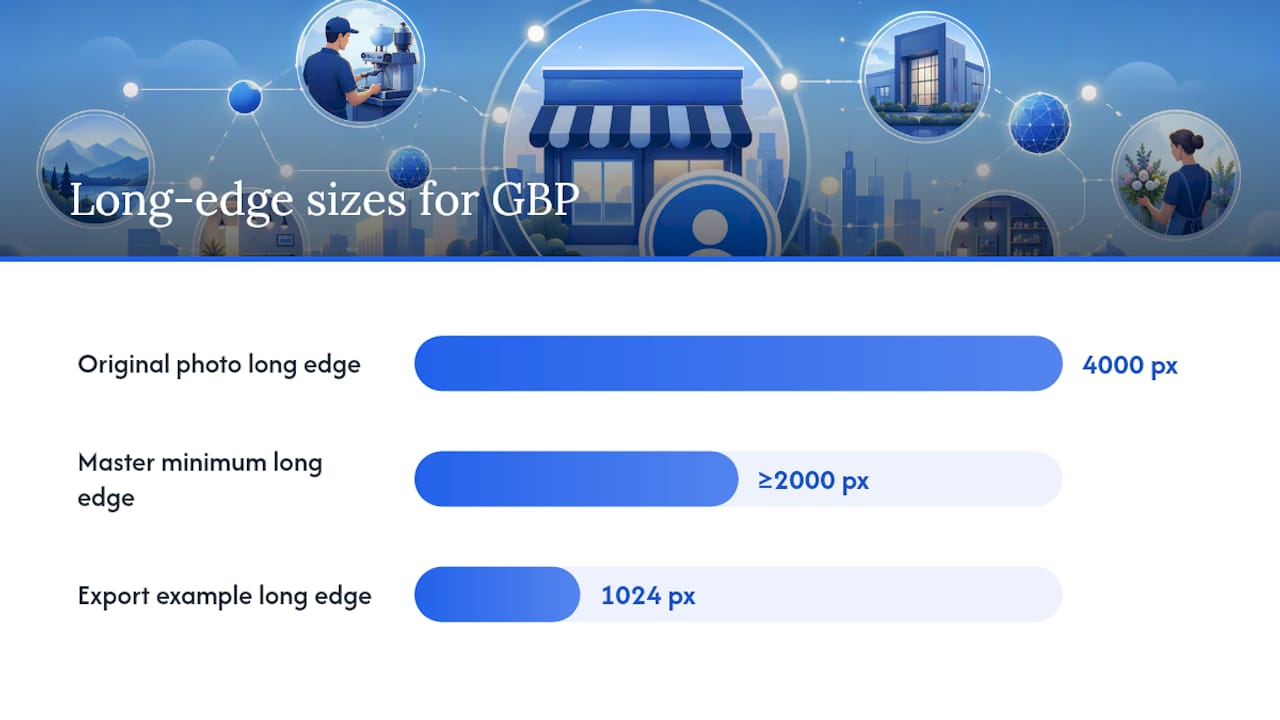
- Resize before recompressing. Shrinking a 4000×3000 px photo to 1024×576 px reduces file size dramatically on its own; then compress the resized version.
- Lossless compression tools (like ImageOptim on Mac or Squoosh in the browser) can shave 15–30% off PNG files with zero visible quality loss.
- Lossy compression (JPG quality reduction) is fine for photographs but avoid it for logos — artifacts appear around sharp edges and text.
Google's own guidance specifies that photos should be in focus, well lit, and without significant edits. Heavy filters or AI-generated enhancements can trigger moderation flags, so keep post-processing minimal.
Pro Tip: Keep one high-resolution master file (at least 2000 px on the long edge) for every key shot. Export device-specific versions from that master: square crops for logos, wide 16:9 crops for cover photos. Never work from a previously compressed export — each recompression degrades quality.
How do you upload, replace, and remove GBP photos?
Uploading via the web interface
- Go to Business and sign in.
- Select the location you want to manage.
- Click Photos in the left menu.
- Choose the photo category (Logo, Cover, or a specific business photo type).
- Click the upload button, select your file, and confirm.
Uploading from Google Maps or Google Search (mobile)
- Search for your business name in Google Maps or Google Search.
- Tap Edit profile or Add photo.
- Select the category and upload from your camera roll.
Replacing or removing photos
To replace a photo, upload the new version in the same category — you cannot overwrite a file directly, so delete the old one first. To delete: open the photo in your GBP dashboard, click the three-dot menu, and select Remove photo. Note that user-submitted photos cannot be deleted by the business owner; you can only flag them for policy violations.
Setting your cover photo
In the Photos section, hover over the image you want as your cover and click Set as cover. However, Google may override your selection if another image in your library has higher quality or engagement. This is algorithmic, not manual. The practical fix is to maintain a library of high-quality images so that whatever Google picks still looks good.
Bulk uploads for multi-location operators: Google's spreadsheet template is available for accounts managing 10 or more locations. Each row maps a photo URL to a specific location ID. Photos must be publicly accessible URLs at upload time.
- After uploading, allow 24–72 hours for photos to appear publicly
- Check display by searching your business name in an incognito browser window
- If photos don't appear after 72 hours, verify the listing is confirmed and the image meets all spec requirements
Where do GBP photos appear, and why does that matter for local visibility?
Your photos show up in more places than most operators realize. The main placements:
- Knowledge Panel (desktop search): the cover photo or highest-engagement image leads the carousel; additional photos appear in the photo strip below
- Google Maps listing: thumbnail image shown in the map sidebar and list view — often the first visual impression a potential customer sees
- Mobile search: a photo carousel appears prominently above the fold in the local panel
- Post previews: images attached to Google Posts appear in the updates section of your listing
- Street View integration: exterior photos can supplement or appear alongside Street View imagery
Exterior and interior photos drive click-throughs and direction requests. Product photos primarily aid recognition and trust once someone is already viewing your listing. BrightLocal's guidance on GBP photos reinforces that photo quality and relevance directly influence how potential customers perceive a business before they ever visit.
Fresh photos also signal an active, maintained business to Google. Listings that add new images regularly tend to show stronger engagement signals, which feeds into local ranking prominence. For storage operators, this is a low-effort, high-return habit — a few new photos per month costs almost nothing and keeps your listing looking current. Understanding how customers discover your facility through visual signals connects directly to how customers find storage facilities in the first place.

What does Google's photo policy actually prohibit?
Google's Business Profile photos and videos policy covers both what you upload and what users submit. Violations can result in image removal, listing demotion, or in severe cases, suspension.
Common reasons images get flagged or removed:
- Promotional overlays: text like "50% off" or phone numbers embedded directly in the image
- Watermarks and logos: third-party watermarks or brand logos placed over photos
- Excessive filters or AI edits: heavily altered images that don't represent the actual location
- Irrelevant content: stock photos, images of other locations, or unrelated imagery
- Copyrighted material: images you don't own the rights to
- Explicit or violent content: any imagery violating Google's general content standards
Moderation is primarily automated. Most images are reviewed within minutes to a few hours; some enter a manual review queue and can take longer. You'll see status indicators in your GBP dashboard (Live, Processing, or Not Published).
Google's own guidance states: "Photos should represent your business as it actually is. Avoid using images that are heavily edited, use excessive filters, or include promotional content — these may be removed for not meeting quality standards." Businesses are responsible for all media on their profile, including user-submitted photos they did not upload themselves.
Practical compliance checklist:
- No text overlays, phone numbers, or URLs in images
- No stock photography or images pulled from other businesses
- Shoot on-location with natural or good artificial lighting
- Keep edits to basic exposure, contrast, and color correction only
- Review user-submitted photos monthly and flag anything that violates policy
What does a strong photo strategy look like for storage operators?
Most storage facilities upload a handful of photos at launch and never touch them again. That's a missed opportunity, and it shows in their listings.
Minimum shot list for a storage facility:
- Exterior from at least two approach angles (street view, entrance)
- Gated entry and security features (keypads, cameras, fencing)
- Office or leasing area interior
- Unit interiors: small, medium, and large sizes
- Climate-controlled unit (if offered)
- Amenities: loading docks, moving carts, truck rental area
- Signage (street-facing and on-building)
- Team or staff (optional but builds trust)
Aim for at least 10–15 photos at launch, with a minimum of one new photo added per month. Quarterly updates work well as a cadence trigger — tie them to seasonal changes, new amenities, or pricing updates. New construction, a freshly paved lot, or a new security system all justify a photo refresh.
For tracking performance, monitor photo views and customer actions (calls, direction requests, website clicks) in your GBP Insights dashboard. If engagement drops after a cover photo change, revert or try a different image.
Pro Tip: Test two different cover photos over 30-day periods and compare direction requests and call volume in GBP Insights. It's a simple A/B test that costs nothing and can meaningfully shift click-through behavior.
One tactic that's not worth your time: adding GPS EXIF data to photos in hopes of a local ranking boost. A March 2025 analysis published in Search Engine Land found no statistically significant ranking improvement from EXIF geotagging. Spend that time on better photography instead. For more on what actually moves the needle locally, the self-storage SEO tactics guide covers the full picture.
For multi-location operators: centralize your master image files in a shared folder (Google Drive or Dropbox), use consistent naming conventions (facility-name_image-type_date.jpg), and use Google's bulk upload spreadsheet for any update touching 10 or more locations.
Statistic to track: Photo views per month in GBP Insights. A healthy, active listing typically shows steady or growing photo view counts. A sudden drop often signals a policy removal or a listing issue worth investigating.
How do you fix photos that won't show, crop wrong, or get rejected?
Symptoms and immediate checks:
- Photo not appearing after 48 hours: Confirm the listing is verified; check that the file is JPG or PNG, under 5 MB, and at least 250×250 px
- Photo rejected immediately: Review for policy violations — promotional text, watermarks, or explicit content
- Odd cropping on mobile: The image likely has important content near the edges; re-export with subject centered and more padding
- Low-quality warning: The image may be below minimum resolution or heavily compressed; re-export from the original master
Steps to fix cropping issues:
- Open the original high-resolution file.
- Identify the safe zone: keep the subject within the center 60–70% of the frame.
- Add canvas padding if needed (solid color or blurred background extension works).
- Export at the recommended dimensions for that image type.
- Upload the new version and delete the old one.
Checking upload status:
In your GBP dashboard, navigate to Photos and look for status labels. "Processing" means Google is reviewing the image — wait up to 72 hours. "Not Published" means the image failed policy review.
When to contact Google Support: if a compliant image stays in "Not Published" status for more than 72 hours, or if a policy-compliant photo was removed without explanation. When you reach out, include the business name, location URL, image filename, upload timestamp, and a screenshot of the status. Google Business Profile support is accessible through the Help menu at business.google.com.
Why ongoing photo care wins for storage facilities
Most operators treat GBP photos as a one-time setup task. That's the wrong frame. A storage listing with stale, low-resolution photos from three years ago tells a prospective renter one thing: nobody's paying attention here. Fresh, well-shot images signal the opposite — an active, well-run facility that cares about presentation.
The steps in this guide aren't complicated. Correct specs, clean exports, a consistent upload cadence, and a quick monthly policy check will keep your listing in good shape. The operators who do this consistently tend to see steadier engagement in GBP Insights and fewer surprises from Google's algorithmic photo selection. Running a storage facility visibility audit alongside your photo updates is a smart way to catch gaps before they affect your ranking.
Corvanesystems helps storage operators get their GBP listings right
Getting specs right is the easy part. The harder part is building a repeatable photo workflow across one location — or ten — while also managing occupancy, maintenance, and everything else that comes with running a storage business.
Corvanesystems handles GBP optimization as part of a flat-rate local SEO service built exclusively for self-storage operators. That means photo audits, upload support, listing health monitoring, and the broader local search work that turns a well-maintained GBP into booked units. No retainers, no contracts, no agency overhead. If your listing's photos haven't been reviewed in the last 90 days, that's the right place to start. See what Corvanesystems does for storage operators and request a visibility audit to find out exactly where your listing stands.
Sources
Primary Google Help documentation:
- Business Profile photos & videos policy and posts content policy - Google Business Profile Help
- Geotagging photos and Google Business Profile rank - Search Engine Land
Practical third-party guides: