
You can update your Google Business Profile address right now from Google Search or the Google Maps app. Sign in to the Google account that manages your profile, search your business name, and follow these steps:
- Sign in to the Google account that owns or manages the profile.
- Search your business name on Google Search or open Google Maps.
- Click or tap Edit profile, then select Location.
- Update the address field and hit Save.
That's the fastest path. One important note: if you're making a significant move rather than a minor correction, expect Google to trigger re-verification. Your profile may display the old address for a short window while that process completes.
Key Takeaways
Changing your Google Business Profile address correctly requires updating official records first, then Google, then your broader directory presence in that order.
| Point | Details |
|---|---|
| Edit from Search or Maps | Access Edit profile → Location from Google Search or the Maps app to update your address. |
| Major moves trigger re-verification | Expect a verification window of days to weeks; avoid editing other profile fields until it clears. |
| Update official records first | Change your website, IRS Form 8822-B, and state filings before submitting a Google address change. |
| NAP consistency protects rankings | Mismatched addresses across directories hurt local search visibility; update Yelp, Bing, and Apple Maps promptly. |
| Corvanesystems manages the process | Corvanesystems handles profile edits, re-verification, and directory cleanup for storage operators at a flat monthly rate. |
Table of Contents
- How to change your Google Business Profile address from desktop
- How to change your business address in the Google Maps app
- What to do when Google can't find your address
- Should you hide your address or show it?
- What happens after you change your address: re-verification and timing
- Troubleshooting: address rejected, duplicate profiles, and suspension
- Google address eligibility rules that can get you suspended
- The U.S. post-move checklist: USPS, IRS, state filings, and NAP
- How to fix incorrect driving directions and Street View issues
- Where to get help from Google when something goes wrong
- What we actually see when storage businesses change their Google address
- Corvanesystems handles your Google Business Profile address change for you
- Sources
How to change your Google Business Profile address from desktop
Sign in to the Google account that manages the profile, then search your business name directly in Google Search. The management panel appears at the top of the results.
- Click Edit profile in the management panel.
- Select Location from the menu.
- Click the pencil icon next to the address field.
- Enter your new street address. Put the street number and name in Address Line 1. If you have a suite or unit, enter it in Address Line 2 (for example, "Suite 200" or "Unit 4B"). Do not add keywords, landmarks, or directional text.
- Click Save.
Google will show a confirmation message. If the address change is minor (a suite correction, a zip code fix), it often goes live within a few hours. A full street move is a different story, covered in the verification section below.
According to Google's official address editing guidance, you can also adjust the map pin from this same screen if Google can't locate the address automatically.
Pro Tip: Update your website's contact page and any official business documents before submitting a major address change. Google cross-references these signals during re-verification, and matching records reduce the chance of a prolonged review window.
How to change your business address in the Google Maps app
Open Google Maps on your phone and make sure you're signed in to the managing Google account. Tap your profile photo, then tap Your Business Profiles to find the listing.
- Tap the business profile you want to edit.
- Tap Edit profile.
- Select Location.
- Tap the address field and enter the new address.
- Tap Save.
On iOS, the navigation labels are nearly identical to Android. The main difference is that iOS users may see a slightly different layout for the profile card, but the Edit profile button appears in both.
Pro Tip: If the address you enter isn't recognized, Maps will prompt you to place a pin manually. Drag the pin to the exact center of your building's footprint, not the parking lot or the street. Accurate pin placement directly affects the driving directions customers receive.
What to do when Google can't find your address
When Google rejects your address or can't geocode it, the fix is usually one of three things: a formatting issue, an unrecognized street, or a new development that isn't in Google's database yet.
Start here:
- Re-enter the address with the full street number and name spelled out. Avoid abbreviations where possible ("Street" instead of "St" sometimes resolves the issue).
- Try alternate official address formats. Check how the address appears on your lease, utility bill, or county assessor records and match that exactly.
- If the address still isn't found, select Adjust (set marker) and drag the pin to your building's footprint on the satellite view.
For suite and unit formatting, keep it clean:
- Address Line 1: 1400 Oak Street
- Address Line 2: Suite 200 (not "Ste 200 near the highway" or "2nd floor, back entrance")
Avoid putting any descriptive text, keywords, or directions in the address fields. Google's address guidelines are explicit that address fields are for location data only.
Pro Tip: Take a clear photo of your storefront and signage before submitting the address change. If Google requests video or photo verification later, having those images ready saves real time.
Should you hide your address or show it?
If customers don't come to your location, hide the address. This applies to mobile service businesses, delivery-only operations, and any business that operates from a home or warehouse not open to the public.
To hide your address:
- Go to Edit profile in Google Search or Maps.
- Select Location.
- Toggle off Show business address to customers.
- Click Save.
- Then set your service area by adding the cities, zip codes, or regions you serve.
A few things worth knowing:
- Google still requires a real, verifiable address on file even when it's hidden from the public. You can't skip the address entirely.
- Do not use a P.O. box or virtual office as your visible or hidden address. Per Google's representation guidelines, virtual offices and mailbox services are generally ineligible unless the location has permanent signage and staffed customer-facing hours.
- Service-area businesses that accidentally leave their address visible often attract walk-in inquiries they can't fulfill, which hurts reviews.
What happens after you change your address: re-verification and timing
Minor edits (a suite number correction, a zip code fix) typically publish within a few hours and don't require re-verification. A full address change to a new street or building is a different situation.
Google's Business Profile editing documentation confirms that moving your business after verification usually triggers a new verification requirement. During that window, the public profile may still show the old address.
Verification methods Google may use, and rough timelines:
- Video verification: Fastest option when available; typically resolves within 1–3 business days.
- Postcard by mail: Sent to the new address; usually arrives within 5–14 days. The code expires, so watch for it.
- Phone or email: Available for some accounts; resolves quickly if the contact info is current.
- Search Console instant verification: Available if your website is already verified in Google Search Console and the domains match.
Pro Tip: Avoid making multiple edits to the profile while verification is pending. Each change can restart the review clock. Submit the address change, then wait for verification to complete before updating hours, categories, or photos.
Plan for a verification window that may last several days to a few weeks for a major move. Schedule any announcement posts or Google Posts about the new location for after verification completes, not before.
Troubleshooting: address rejected, duplicate profiles, and suspension
The three most common problems after a Google Business location change are a rejected address format, an accidental duplicate profile, and a suspended profile.
Address rejected: Reformat the address to match official records exactly. If the field still won't accept it, use the pin placement method described above. Make sure no keywords or extra text are in the address lines.
Duplicate profile: If a second listing appeared for the new address, don't ignore it. Google's duplicate resolution guidance explains how to request a merge. A duplicate splits your reviews and confuses customers. To find duplicates, search your business name and address in Maps and look for any listing you don't recognize.
Profile suspended: Suspension after an address edit usually means the new address triggered a policy flag (virtual office, unrecognized location, or a format that looks like keyword stuffing). Steps to recover:
- Review the address against Google's eligibility rules.
- Correct the address and resubmit.
- If the profile stays suspended, use the Business Profile Help Center to submit a reinstatement request with supporting documentation (lease, utility bill, business license).
Pro Tip: Never create a new Google Business Profile for a moved location. Always edit the existing verified profile. A new profile loses every review and piece of history you've built, and the old profile may get flagged as abandoned or duplicate, creating a mess that takes weeks to untangle.
Google address eligibility rules that can get you suspended
Google requires a real-world, staffed location with permanent signage for storefront businesses. The address you list must be where customers can actually visit you during stated hours.
Ineligible address types:
- P.O. boxes
- Virtual offices without permanent signage and staffed customer-facing hours
- Co-working spaces where you don't have a dedicated, customer-accessible workspace
- Mailbox services (UPS Store boxes, etc.)
- Residential addresses for businesses that don't serve customers at home
Common mistakes that trigger suspension:
- Adding marketing copy or keywords to the address field ("Best Storage on Main Street" instead of "1400 Main Street")
- Using directional text in the address ("behind the Walmart" or "near Exit 12")
- Listing a suite number that doesn't exist or isn't on the lease
Suite numbers should appear in Address Line 2, formatted simply: "Suite 200," "Unit 4B," "Floor 3." Nothing else.
Pro Tip: If you operate a self-storage facility with an on-site office that customers visit, you qualify as a storefront business. Make sure your listed hours reflect when staff are actually present, not just when the gate is accessible. Google's eligibility check looks at staffed hours, not gate access hours.
The U.S. post-move checklist: USPS, IRS, state filings, and NAP
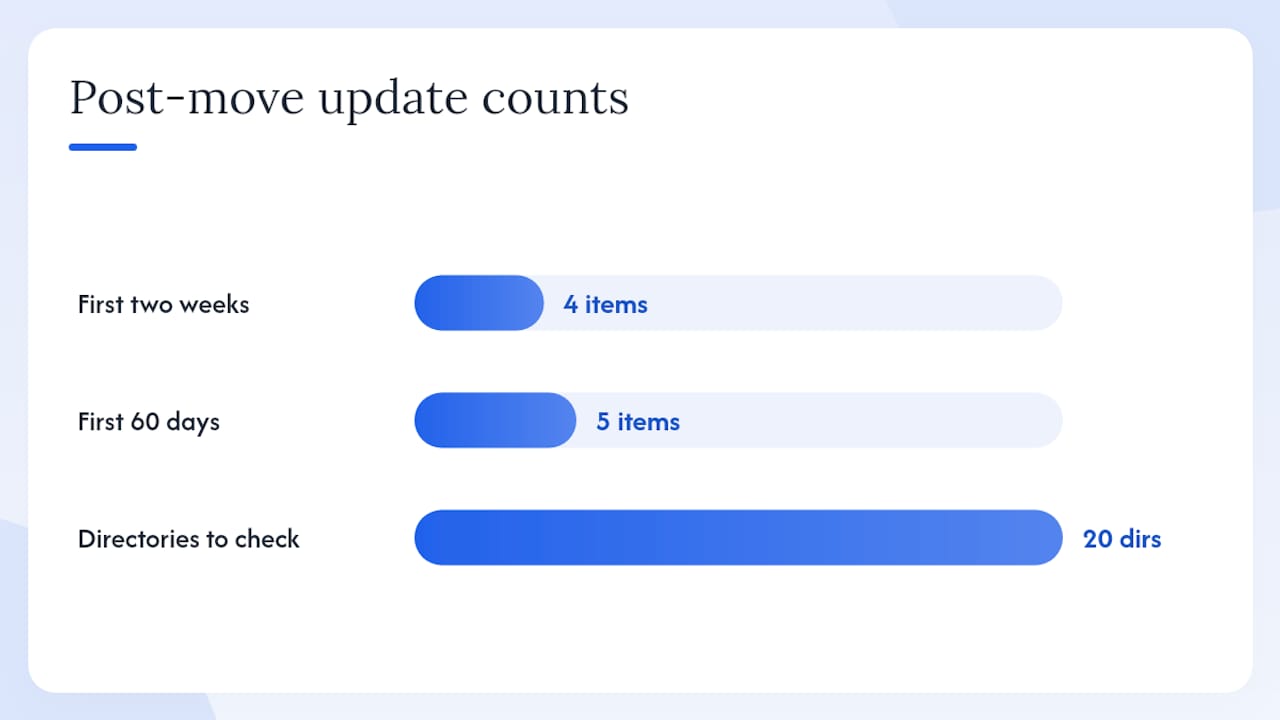
Update your official records first, then your online presence. Inconsistent NAP (Name, Address, Phone) data across directories is one of the more reliable ways to quietly lose local search rankings, as the SBA's post-move guidance makes clear.
First two weeks:
- USPS mail forwarding: File a business change-of-address request with USPS. In-person requests require documentation proving you're an authorized agent for the business.
- IRS Form 8822-B: Notify the IRS of your new business address using Form 8822-B. Mail the completed form to the IRS address listed on the form itself.
- Banks and payment processors: Update your address with your business bank, merchant account, and any lenders.
- Business insurance: Notify your insurer immediately. Coverage can be affected by an unlisted address.
First 60 days:
- Secretary of State filing: Update your registered agent address and business registration with your state. LegalZoom's LLC address change guide notes that processing times vary by state, from a few days to several weeks.
- Local business licenses and permits: Contact your city or county licensing office.
- Website contact page and footer: Update every instance of the address on your site.
- Major directories: Yelp, Apple Maps, Bing Places, and any industry-specific directories.
- Social profiles: Facebook Business Page, Instagram, LinkedIn company page.
For storage operators specifically, NAP consistency across local citations is a direct ranking factor. A facility with mismatched addresses across 20 directories will lose ground to a competitor whose listings are clean.
How to fix incorrect driving directions and Street View issues
After a Google Business location change, driving directions may still route customers to the old address for a period. You can speed up the correction.
- Open Google Maps and search your business.
- Click or tap the three-dot menu on the listing and select Suggest an edit.
- Choose Fix an incorrect location and drag the pin to the correct building entrance.
- Submit the edit.
For Street View imagery showing your old location or outdated signage:
- Open the Street View image on Google Maps.
- Click the three-dot menu in the top left of the Street View panel.
- Select Report a problem.
- Choose the appropriate reason (outdated imagery, wrong location) and submit.
Google reviews Street View reports manually, so allow a few weeks for changes to appear.
Pro Tip: After submitting the pin correction, test the driving directions yourself from a few nearby landmarks. Ask a staff member or a trusted customer to do the same from a different device. Catching a routing error before customers do saves real headaches.
Where to get help from Google when something goes wrong
When self-service edits don't work, these are the official channels:
- Google Business Profile Help Center: The primary resource for how-to articles, policy explanations, and the contact form for direct support.
- Add or edit your address: Google's official step-by-step for address edits and pin adjustments.
- Edit your Business Profile: Covers verification triggers and what to expect after a move.
- Resolve duplicate profiles: The merge request process for duplicate listings.
- Manage Business Profile with Gemini Apps: If you use Google's Gemini assistant, it can connect to your Business Profile for certain management actions.
Before contacting support, have these ready:
- A copy of your lease or utility bill showing the new address.
- Your business registration or license.
- Photos of the storefront and signage at the new location.
- The email address associated with the managing Google account.
Google support can request any of these during a manual review. Having them organized before you open a ticket cuts the back-and-forth significantly.
What we actually see when storage businesses change their Google address
The most common mistake isn't a technical one. It's changing the Google Business Profile before updating anything else.
A storage operator updates the address in Google, the profile triggers re-verification, and Google's system starts cross-referencing the new address against the website, directories, and state records. If those still show the old address, the mismatch extends the verification window. Some operators wait three or four weeks for a process that should take a few days, simply because the website contact page still listed the old location.
The second most frequent problem is duplicate profiles. An operator moves, can't find the original profile, and creates a new one. Now there are two listings: the old verified one with 60 reviews, and a new unverified one with zero. Customers find both, leave reviews on the wrong one, and the operator loses the history they spent years building.
A few other patterns worth flagging:
- Hidden suite numbers. A facility at "1400 Oak Street, Suite 100" listed as just "1400 Oak Street" creates pin placement errors and occasionally triggers a duplicate when someone else at the same building lists their own suite.
- Service-area settings left unchanged. Mobile storage operators who move their operating base but forget to update the service area end up showing in the wrong geographic results.
- Occupancy impact. Incorrect location data doesn't just affect rankings. Customers who get bad directions and can't find the facility don't call back. They book somewhere else. Accurate location data is a direct occupancy lever, not just an SEO detail.
The fix for all of these is the same: update official records and the website first, then change the Google profile, then verify. In that order.
Corvanesystems handles your Google Business Profile address change for you
Updating a Google Business Profile address is straightforward when everything goes smoothly. When it doesn't, the re-verification process, duplicate listings, and directory cleanup can consume hours you don't have.
Corvanesystems manages the full address update process for self-storage operators: the Google Business Profile edit, re-verification documentation, NAP synchronization across key directories, and post-move monitoring to catch ranking drops before they cost you bookings. No contracts, no tiers, one flat monthly rate. Storage operators who want their local search presence handled correctly without spending a week on Google support threads can get started with Corvanesystems today.
Sources
- Add or edit your address - Google Business Profile Help
- Edit your Business Profile - Google Business Profile Help
- About Form 8822-B
- Change Your Business Address - USPS
- Have an Address Change for Your Business? Here’s Who You Need to Inform. | U.S. Small Business Administration