To verify a Google Business Profile for a self-storage facility, sign in to the Google Account that manages the profile, choose Get Verified, and complete whichever method Google offers you: phone or SMS, email, a live video call, or a postcard. You don't pick from a fixed menu. Google decides which options appear based on your business type, public information, region and business hours. For a storage facility, that often means video, so the real work is preparing your site, your signage and your paperwork before you start.
This guide walks through the whole process the way a storage operator experiences it: who is allowed to verify, what the methods are, how to get through a video call at a facility that may have no front-desk staff, what to do when Google says no, and how to keep the profile in good standing afterward.
TL;DR
- Only an owner or authorized representative may verify a profile, and Google chooses which methods you see, so you try what the screen shows rather than choosing one.
- Google recommends video verification when your business is eligible. Do it during local business hours, from a device that supports live video, and be ready to show signage, the location and management control.
- Postcard codes usually arrive within 14 days. Don't edit your name, address or category after requesting one, or the code won't work.
- If one method fails, try the others on screen before contacting support. Reviews of submitted information can take up to 5 business days and sometimes longer.
- Decide before you start whether you are a storefront or a service-area listing. Permanent on-site signage is what separates the two.
Table of Contents
- Why verification matters for a storage facility
- Before you start: what to prepare
- Storefront or service-area: the address decision
- The verification methods you may see
- How video verification works at a storage facility
- How long verification takes and how to check status
- If verification fails or no option appears
- Perspective: what we see with storage operators
- After you're verified: protect the listing
- Want us to handle it?
- FAQ
- Sources
Why verification matters for a storage facility
An unverified profile is a profile you don't control. You can't reliably edit hours, respond to reviews, add photos or keep the address correct. For a self-storage operator, where most renters search near their home or work and pick from a handful of map results, that is a direct hit on inquiries and move-ins.
Verification is also the gate for everything else you might do with the listing: tuning categories, posting updates, and tracking calls. If you want the broader picture of how a verified profile feeds your map ranking, our spam-proof Google Maps checklist for self storage covers the next layer.
One rule to know up front: only business owners or authorized representatives are permitted to verify a profile. If a former web vendor, a prior manager or a third party created the listing, sort out access first. Otherwise you will be verifying a profile you can't legitimately claim.
Before you start: what to prepare
Most failed verifications are not Google being arbitrary. They come from mismatches between what the profile says and what Google can see. Spend 30 minutes on this checklist first.
- Sign in to the right Google Account. Use the account that owns or will own the profile, ideally a business-controlled one and not an employee's personal email that you'll lose when they leave.
- Check for an existing listing. Storage facilities are often duplicated by acquisitions, rebrands and old managers. If a listing already exists for your address, claim it instead of creating a second. Our guide to fixing duplicate Google listings walks through the checks.
- Make the name, address and category exactly right. These are the fields you must not change once a postcard is on its way.
- Decide storefront or service area. More on this below.
- Gather proof of the business. Registration documents, licenses, tax certificates and utility bills are the kinds of paperwork worth having on hand if Google asks for more evidence. A utility bill in the business name at the facility address is especially handy.
- Schedule the video call window. Live video must happen within your facility's local business hours, so plan it for when you can walk the property.
- Charge your phone and test the signal. Cell coverage in the back of a large drive-up facility can be poor. Test from the units and the office.
Storefront or service-area: the address decision
This is where storage operators most often get tangled. Google's definition is plain: a storefront serves customers in person at a physical location with permanent on-site signage. Without permanent on-site signage, list it as a service-area business. And if you don't serve customers at the business location, don't add the address to the profile.
Apply that to the common storage setups:
- Staffed facility with a sign out front: storefront. Show the address, add hours, and expect to demonstrate the sign on a video call.
- Unstaffed, gated facility with a permanent sign: still a location where customers come to you, so a storefront with signage is the natural fit. Be ready to show how you manage the property even without a counter.
- Management office elsewhere that handles several sites: don't put the office address on a profile for a facility it doesn't serve customers at. Each facility gets its own profile at its own address, and the office address is not a listing in itself.
- Mobile or portable storage delivery with no public yard: this is closer to service area, because customers aren't walking into a location.
If you later discover the address is wrong or the facility moved, don't improvise. Follow the steps in how to change your Google Business Profile address so you don't trigger a fresh verification mess.
The verification methods you may see
Google's help page lists the possibilities: phone or SMS, email, live video call, or postcard. Google's developer documentation describes the same standard set, with postcard, email, phone call and SMS as standard methods, plus automatic and vetted-partner options that have limited availability.
| Method | What happens | Watch out for |
|---|---|---|
| Phone or SMS | A code is sent to a number Google trusts for the listing | Only appears for some businesses |
| A code goes to an address tied to the business | Use an address you can open right now | |
| Live video call | A Google agent asks you to show the location in real time | Must be in local business hours, on a video-capable device |
| Postcard | A code is mailed to the address on the profile | Most arrive within 14 days; no edits while you wait |
Google also says it recommends video verification if your business is eligible. In practice, if you see several options, video is usually the fastest path for a facility, because you control the timing instead of waiting on mail.
Postcard verification
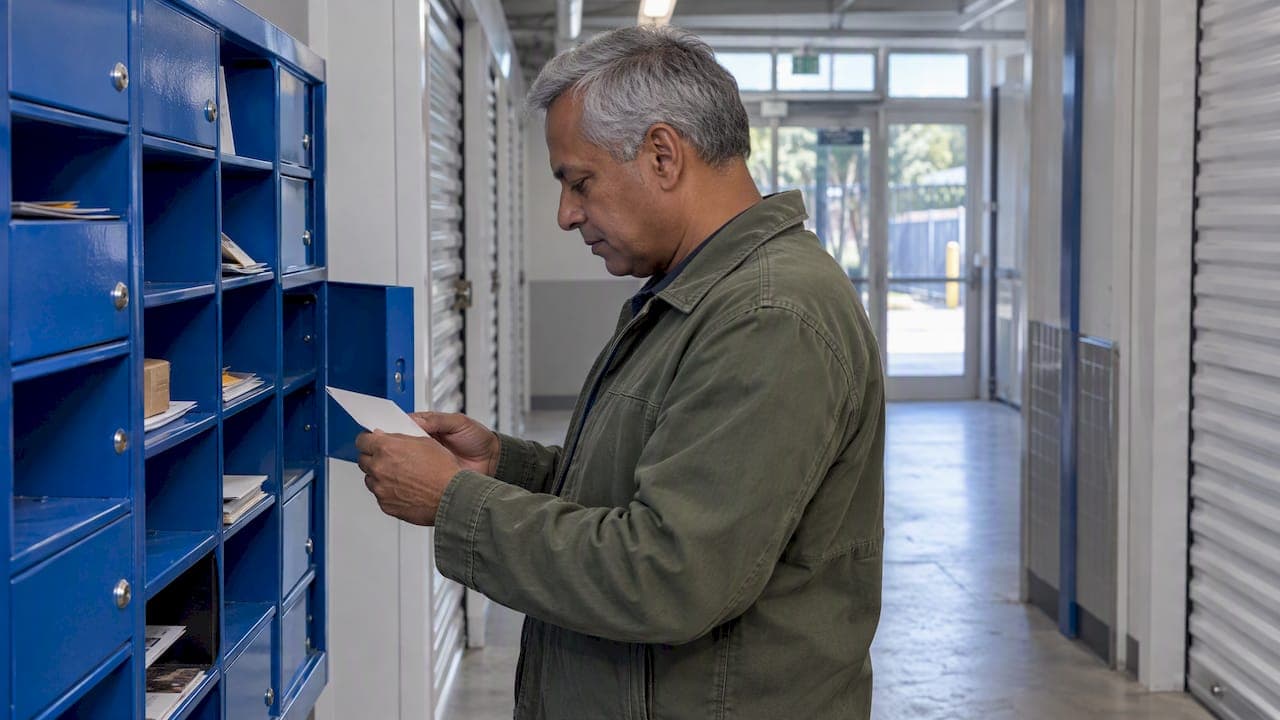
If the postcard route is all you're offered, treat the waiting period as frozen time. Most codes arrive within 14 days, and editing your business name, address or category after requesting a code means the code won't work. Make sure someone checks the mail at the facility. Unstaffed sites often have mail piling up at a corporate office or a PO box, and a postcard sent to the wrong place is a wasted two weeks.
How video verification works at a storage facility
Video is the method that scares owners, so here is what to expect. The call has to take place within the local business hours of the facility and needs a device that supports live video. Google's guidance says you should be prepared to demonstrate three things: your location, proof of existence through signage, and management control by accessing employee-only areas such as storage rooms, or by using keys.

For a self-storage facility, that translates into a walk-through. Here is a practical script.
What to show, in order
- The approach and the sign. Start outside or at the entrance. Show the permanent sign with the business name, and the street or building number if visible. The name on the sign should match the name on the profile.
- The surroundings. Pan slowly to show the road, neighboring businesses and the entrance gate or driveway so the agent can tie the place to the address.
- The office or kiosk. If there is a staffed office, show the counter, any branded materials and the rental paperwork. If it's unstaffed, show the kiosk, keypad or access system.
- Management control. This is the step that tends to decide it. Use a key, a code or a badge to open an employee-only area: a mechanical room, a vacant unit, a back office. Show the key or the keypad working, not just a closed door.
- The units. Show a row of units, a unit number and a door. Open a vacant one if you can.
- Back to the sign. Finish where you started so there is no doubt it's the same property.
Keep the camera steady, avoid cutting between locations, and narrate what you're showing. If you are using an operations partner or a regional manager's phone, make sure they are an authorized representative and not just someone standing nearby.
Tips that save a second attempt
- Do the call in daylight so signs are readable.
- Don't hold your phone up in a way that hides your face and surroundings at the same time. Aim for continuous footage.
- If your facility is part of a bigger brand, the sign may show the brand and not the legal name. That's normal, but make the profile name match what is on the sign.
- Rehearse once without calling, so you know exactly where the keys, codes and gates are.
If you want a deeper grounding in proving a business is real and where it says it is, the local SEO and GEO lessons on that site explain the fundamentals of how a location is understood across search and AI tools.
How long verification takes and how to check status
Some methods are instant, such as a code by SMS or email. Others take days. Google says integrity in the process is critical, and reviews of submitted information can take up to 5 business days and sometimes longer. Postcards, as noted, usually land within 14 days.
To check status, sign in to the account that manages the profile and look at the profile's verification banner or the Get Verified prompt. If Google needs more information, that prompt is where it shows up. Don't resubmit repeatedly while a review is pending, and don't edit the name, address or category while you wait.

If verification fails or no option appears
Search Engine Land has noted that verification has grown more complex, with users commonly hitting a message that there are no more ways to verify. If that happens to you, work through this order.
- Try every option on screen. If the profile shows multiple verification options, try another method. Google advises trying all of them before contacting support.
- Respond to evidence requests. If Google asks for additional information, select Get Verified and try to re-verify the profile after supplying it.
- Fix mismatches. Compare the profile name with your signage, the address with the one on your registration and utility bills, and the category with what you actually do. Resolve differences before another attempt.
- Contact support. If you still can't verify, contact Google Business Profile support through the help center with your documents ready.
A failed video call is not the end. Write down what the agent asked to see, fix the gap (usually the sign, the name match or proof of control), and retry in business hours.
Common storage-specific snags
- Sign not yet installed. A new facility with no permanent sign should be treated as a service-area listing, with the address hidden, until signage goes up.
- Unstaffed site, no one to answer. Verify while a manager is on location, with keys or access credentials in hand.
- Duplicate or inherited listing. Claim or merge before verifying.
- Multiple facilities under one owner. Each location needs its own verification. Google notes that profiles added to an account must accurately reflect the size of the business, so don't spin up profiles for places you don't operate.
Perspective: what we see with storage operators
We work only with self-storage operators, and the pattern is consistent: verification is treated as a one-time chore, and then the profile drifts. Hours change, a sign gets replaced, a manager leaves with the login, and six months later the listing is suspended or can't be edited.
Our view is that verification is the start of a profile you actively run. Get the name, address and signage consistent first, since they are the things Google checks. Then keep access in a business-controlled account, not a person's inbox. And remember that map results are now one of several places renters find you: AI assistants pull from the same profile data and from your website, so a clean, verified, consistent listing helps in both worlds. Our local SEO audit checklist for storage shows how we check that consistency.
— Mike
After you're verified: protect the listing
Once the badge is in place, a few habits keep it that way.
- Keep details identical everywhere. The name, address and phone should match your website and other directories. If you also list on other map platforms, our guide to Bing Places for self storage covers the basics.
- Add accurate photos. Signage, entrance, drive aisles, units and the office help renters recognize your site. Follow the photo guidelines and storage rules.
- Handle reviews properly. Respond to real ones, and if you receive fake reviews, use a structured process such as our escalation steps for removing fake Google reviews.
- Post and measure. Updates and offers keep the profile fresh, and tracking calls tells you what it's worth. See our notes on Google Posts for self storage and call tracking setup.
- Audit regularly. Run through our storage facility visibility audit checklist so problems surface before a renter finds them.
Want us to handle it?
If you'd rather spend your time on occupancy than on profile paperwork, that's what we do. Corvane Systems is built only for self-storage operators and combines SEO with visibility in AI tools such as ChatGPT, Claude, Perplexity and Google's AI Overviews. Our full system is $299 per month, with a one-time onboarding fee of $50, no tiers, no contracts and no minimums. It includes Google Business Profile optimization, local search positioning, monthly content and reporting, and we also offer a free AI visibility audit so you can see where your facility stands today.
Start at corvanesystems.com and ask for the audit.
FAQ
Can I choose video verification myself?
Not always. Google determines which options appear based on business type, public information, region or business hours. Sign in to the account tied to the profile, select Get Verified and use whichever options are shown. Google does recommend video when your business is eligible.
How long does a postcard take to arrive?
Most postcard codes arrive within 14 days. During that time, don't change your business name, address or category, or the code won't work. Make sure someone is collecting mail at the address on the profile.
Do I need staff on site for a video call?
You need someone who is an owner or authorized representative and can show the location, the signage and employee-only areas, using keys or access codes. The call must take place during the facility's local business hours. An unstaffed facility can still pass if the person on the call can demonstrate control of the property.
What if Google says there are no more ways to verify?
First try every option the profile shows. If Google requested more information, select Get Verified and re-verify after providing it. If you still can't verify, contact Google Business Profile support with your registration and utility documents ready.
Should I show my address if I have no sign?
A storefront needs permanent on-site signage. Without it, Google says to list the business as a service-area business. If you don't serve customers at the location, don't add the address to the profile.
Sources
- Verify your business on Google, Google Business Profile Help
- Verify your business with a video recording, Google Business Profile Help
- Verify Business Profiles in bulk, Google Business Profile Help
- VerificationMethod, Google Business Profile APIs
- How to verify your Google Business Profile, Search Engine Land